Time Tracking for Jira · Runs on Forge
Weekly Timesheets for Jira
A Monday–Friday grid for logging time across all your Jira projects — copy last week, submit for approval, and export clean CSV for payroll. Hours save as ordinary Jira worklogs.
- Data stays in your Jira (Atlassian Forge)
- Writes only worklogs — never issues or projects
- Developer support, ≤ 2 business days
Last updated June 13, 2026
What it does
Weekly Mon–Fri grid
Time that lives in Jira
Copy last week
Submit & approve
CSV for payroll
Permission-honoring
Quick start
- Install the app from the Atlassian Marketplace into your Jira Cloud site.
- Open Apps → Weekly Timesheets.
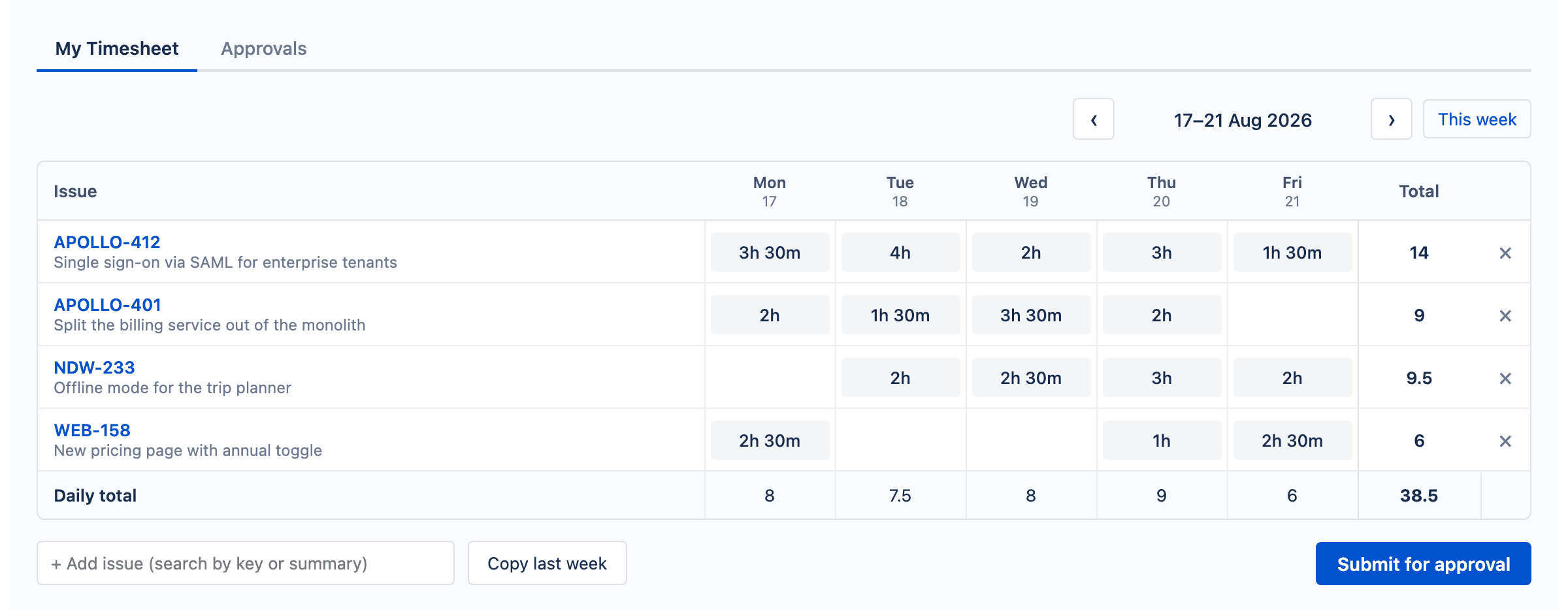
- Use + Add issue to search by key or summary and add issues as rows.
- Click a Mon–Fri cell and type your time —
1.5,1h 30m, or0:30. It saves automatically as a Jira worklog. - When the week is done, click Submit for approval. The grid locks and your approver is notified.
The weekly grid
Rows are issues, columns are Monday–Friday, and each cell holds the time logged that day. The grid shows daily totals, row totals, and a grand total. Navigate weeks with the arrows or This week.
Entering time
Click a cell and type a duration: a decimal (1.5), hours and minutes (1h 30m, 2h, 90m), or h:mm (0:30). Cells save on blur or Enter — no save button. A saving cell is briefly locked so you can’t double-submit. Clearing a cell deletes that day’s worklog.
Adding & removing rows
The + Add issue search matches partial keys and summary text. A week holds up to 30 rows.
Removing a row keeps the time
Copy last week
Copy last week brings last week’s issue rows into the current week with zero hours, so you start from your usual set instead of re-adding issues.
Submit & approve workflow
A week moves through four states:
- Draft — editable. The default.
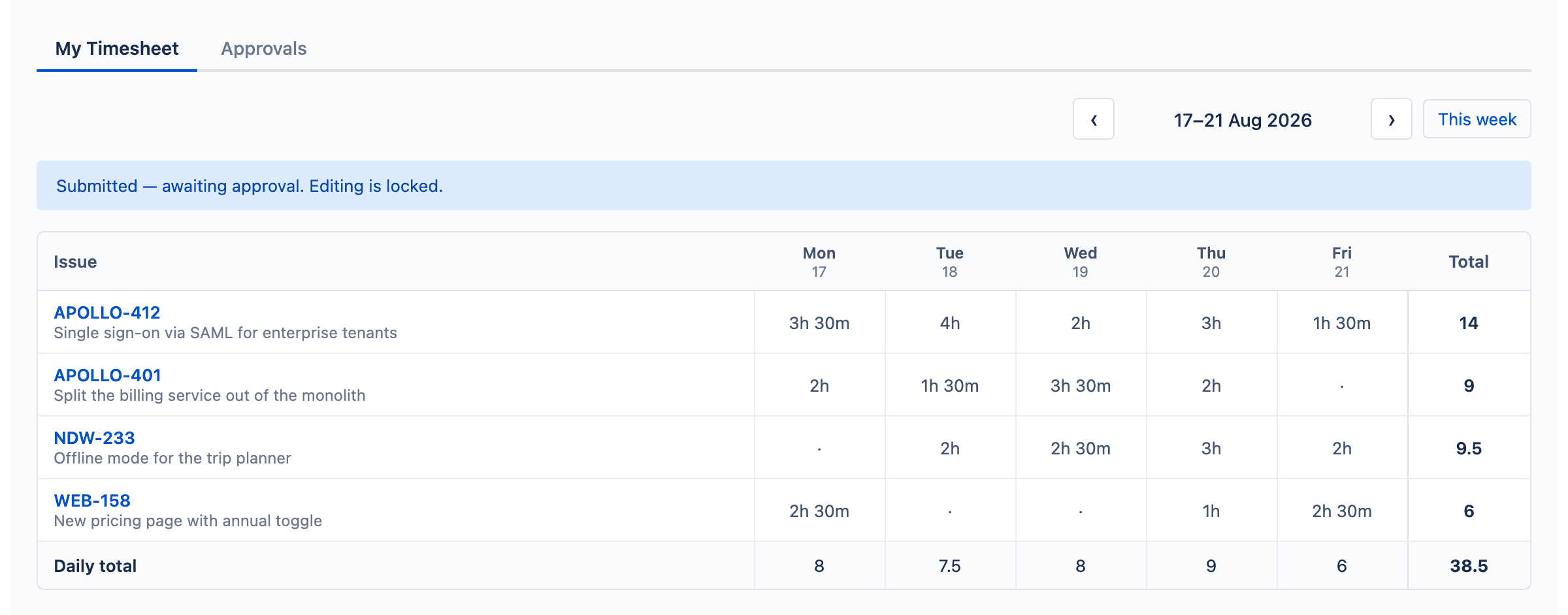
- Submitted — locked, and waiting in your approver’s queue.
- Approved — accepted by your approver. Locked.
- Rejected — sent back with a comment; reopens for editing so you can fix and resubmit.
A status banner at the top of the grid always shows where the week stands.
For approvers
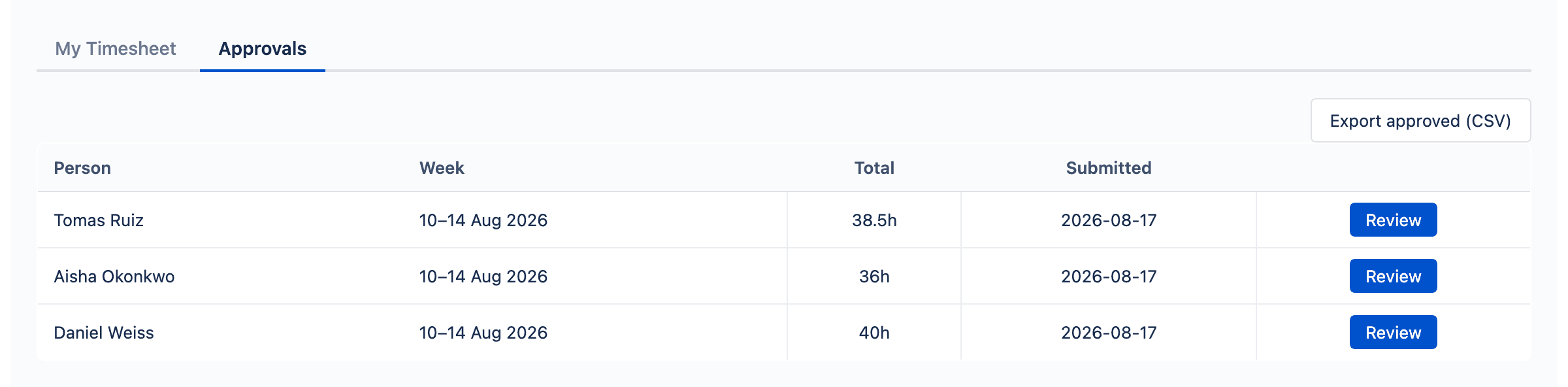
If anyone is assigned to you as their approver, an Approvals tab appears, listing submitted weeks from the people you approve. Open one to review the grid read-only, then Approve or Reject with a comment. Export a single reviewed week, or use Export approved (CSV) for the whole team’s approved weeks at once.
Approver mapping (admin)
A Jira administrator opens Jira Settings → Apps → Weekly Timesheets settings and maps each person to a single approver. A person cannot approve their own timesheet. Only administrators can view or change mappings — the app enforces this on the server, not just by hiding the screen.
CSV export
Exports use a long format suited to payroll/billing: one row per logged entry, with columns issue, user, date, hours, comment, project. The file is generated in your browser and downloaded directly — it never passes through a Midgaard server — and issue keys are written so spreadsheets don’t mis-interpret them.
How your data is handled
Hours save as standard Jira worklogs attributed to you. Week structure, status, and approver mappings live in Atlassian’s Forge Storage; nothing leaves your Atlassian instance, and the app makes no calls to any non-Atlassian host. Its single write capability is scoped to worklogs. See the Privacy Policy for the full statement.
FAQ
The Approvals tab isn’t showing.
I can’t edit my week.
Removing a row didn’t delete my time.
“You don’t have permission to log work on …”
Why only 30 rows per week?
On the roadmap
Deliberately not in v1, but on the radar based on demand:
- Billable vs. non-billable flags
- Invoicing, rates, and budgets
- Holiday / PTO / absence tracking
- Multi-step or project-scoped approval chains
- Locking of past periods
Ready to try it?
Install it from the Atlassian Marketplace. File bugs and feature requests on GitHub Issues, ask in Discussions, or email piotr@midgaard.software. We reply within two business days.